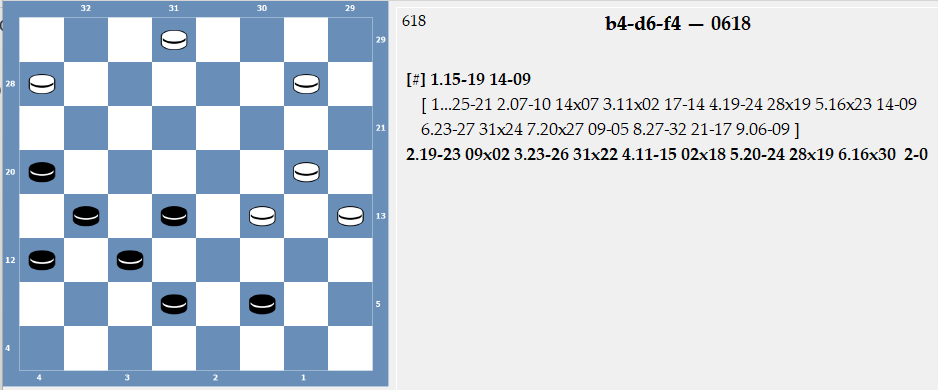
Using Aurora
I had a visitor the other day, he got stuck trying to open Aurora database.
I thought it might be a common trouble, the very first, hard to comprehend, steps.
This practical tutorial will lead you through these first steps and beyond.
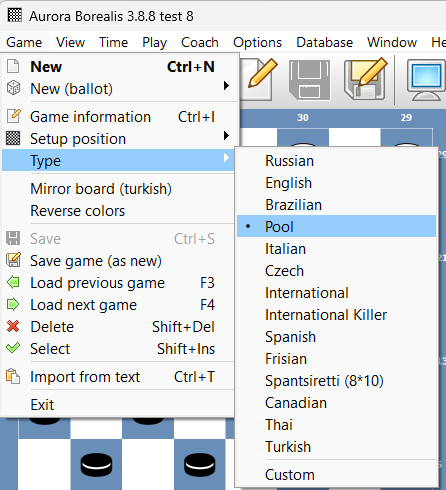
Aurora can run different types of games – Russian, Brazilian, International, Pool.
Your very first step is to make sure the correct type is selected.
To do this click on Game. select Type and there on Pool.
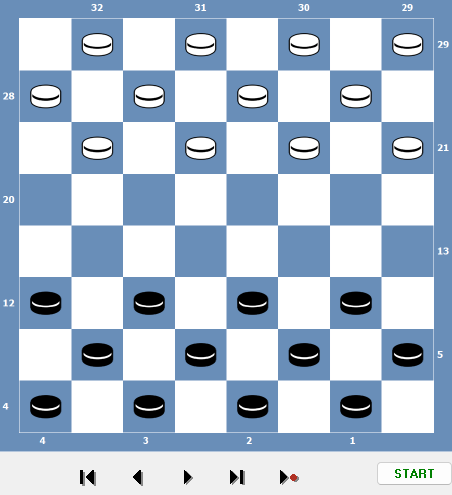
Start moving pieces, first black, then white.
Make several moves, notice that every move is recorded on the right side.
Also click the arrow buttons under the diagram, for example the left arrow would move the checker back and the right arrow forward.
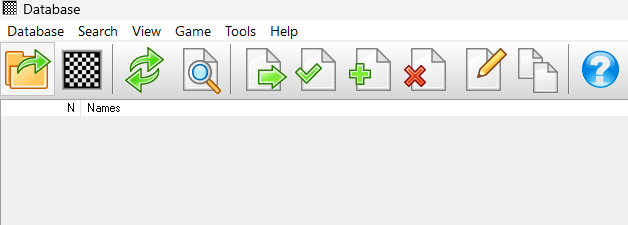
Aurora has two windows – Games and Database.
Three ways to open the Database window:
1. Push the F2 function key.
2. Click the Database label above the icons.
3. Click the Database icon.

Click Database, and under it, Open database,
If you already have some databases, you will see a list to choose from.
Otherwise just type any name, for example Games.
You will see a message “Create new database?” – Click Ok.
This is how easy it is to create databases!!!
Most of the times you do not need to create or open database, once opened it will stay open and ready for you.
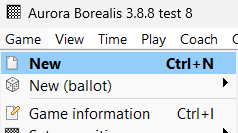
Starting a new game is very easy, three ways:
1. Under Game click New.
2. Do a Control-N.
3. Click the Blank icon under Game.
Close the database window, again several ways:
1. Click x in window’s top right corner.
2. Database/ close database window (on the menu bottom).
3. Click the diagram icon (second from the left).
4. Push the escape button.
This will return you to the Games window.
The game that you played is still there.
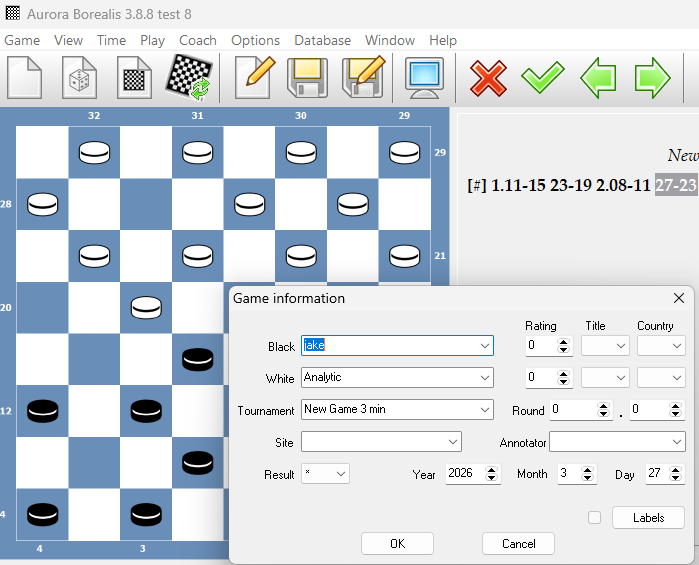
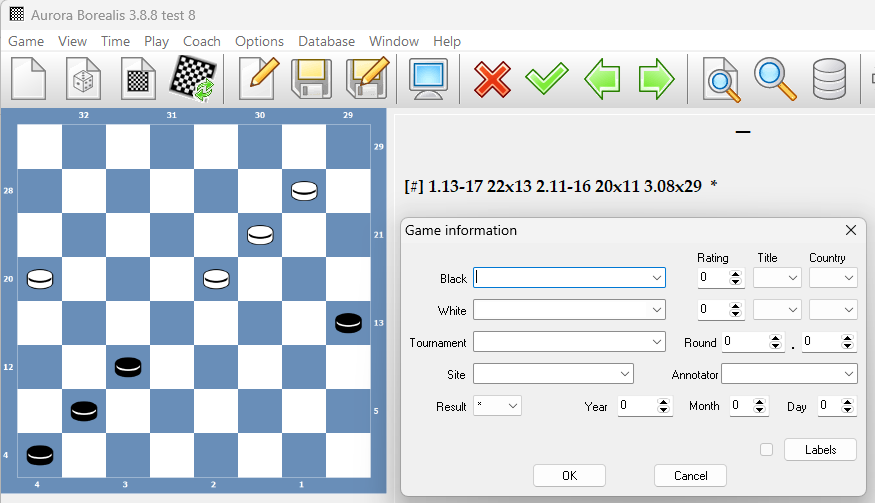
Click the Diskette button (sixth from the left) to save it.
Here you can specify players, tournament, result, etc.
For now simply click Ok. Your game is now saved in the database!
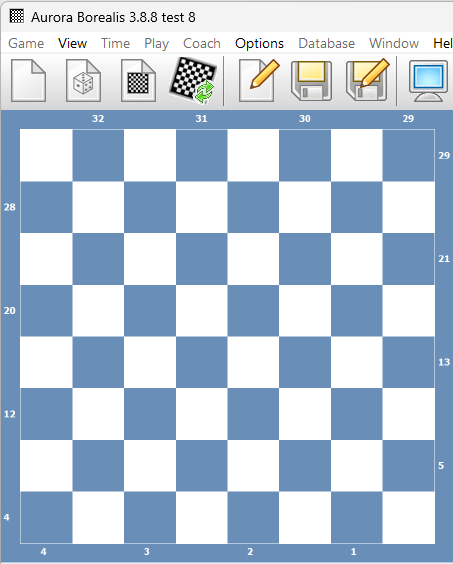
The easiest way to create a position is to click the Empty Diagram icon, third from the left. You will see this screen.
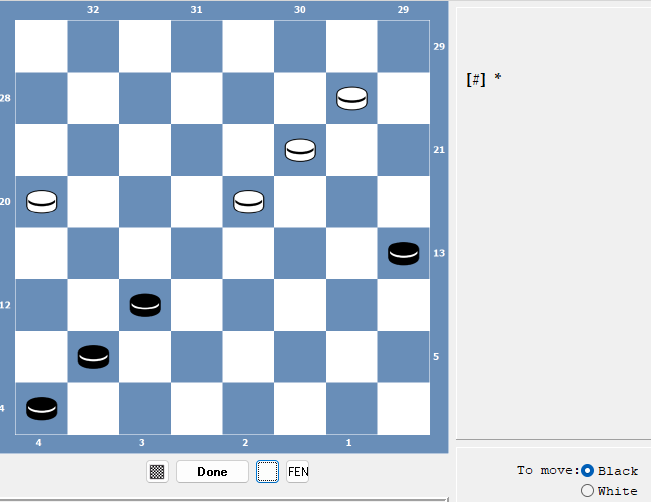
Start adding checkers. Point to the square and click the mouse, left button for the black checkers, right for the white.
If you continue to click the mouse you will also see the black and white kings. You can also remove the checker by clicking on it continuously.
Notice the Black move first instruction.
Click Done after you set the position.
Ctrl-P can put you back into the Edit mode.
Click the Start button under the diagram, this instructs Aurora to start analyzing and give its best move.
Note that here Aurora shows 1.13-17 as a winning move. (Letter x on the left indicates the win). Actually, clicking the Start in any position will help you analyze the situation.
Ctrl-A will show multiple lines. Ctrl-A to return to single line.
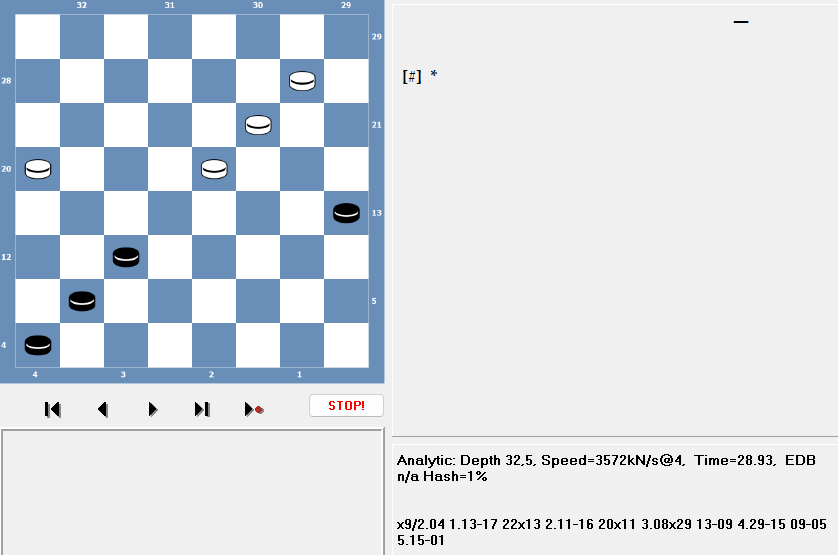
Saving puzzles, or any other positions, is the same as saving the games, just click the Save button. Again you can specify details, who won, etc.
IIn most positions there are more than a single move possible, Aurora allows you to record them as Variations.
After the 1.13-19 the main line is 14-09, but the second best line is 25-21. Main lines are always in bold, while variations are in regular font.
Simply click on the 25-21 to see that line in action.